
How to post FACEIT results to Discord
To post a FACEIT result to Discord, you need two things: a webhook for your results channel, made once in Discord, and the link of the match room on FACEIT. With both, a CS2 match becomes a finished result graphic in your team's colours, posted to the channel with one click, without retyping a single score.
This guide goes through the setup once, then one match from start to finish: the announcement before it, the roster graphic, and the result after it. The example is a fictional match, Nordwind against Eisenhut in week 4 of the Polar Cup, best of three.
Two ways to do it
Type it yourself. Write the score into the channel and paste the link of the match room. It costs nothing and takes a minute. What it does not do is stand out: a line of text scrolls away and rarely gets shared.
Post a graphic. A result graphic with both teams, the series score and every map is what people react to and what your players share. Making one by hand means opening a design tool after every match and copying the scores over from FACEIT. That is the step gelvik takes over, and the rest of this guide shows how.
Set up the channel once
1. Create a webhook in Discord
A webhook is a link that lets an app post to one channel of your server. In your server settings, under Integrations, create a webhook, choose the channel it posts to and copy its URL. You need permission to manage the server's webhooks; if you do not see the option, ask whoever runs the server.
The name and picture you give the webhook in Discord are what the posts appear under, so name it after your team or after the channel.
2. Add the channel in gelvik
Paste the webhook URL into gelvik and give the channel a name your team will recognise, such as "results". If you want announcements in a different channel, make a second webhook and add it the same way. Owners of your team add the channels; everyone on the team can post to them.
There is no bot to invite and no admin rights for gelvik. A webhook can only post to the channel it was made for.
Before the match: import it
Copy the match link
Open the match room on FACEIT and copy the link from your browser. You do not need a FACEIT account for gelvik to read the match, and it works before the match, while it runs and after it.
Import it in gelvik
On your matches page, choose Import from FACEIT and paste the link. gelvik sets up the match: opponent, competition, start time and format. It finds your side by your players' handles; if it cannot tell, it asks once which of the two teams is yours. Tick Remember this team there, and later imports of your team's matches find your side on their own.
If FACEIT writes a name differently from how your team does, change it in gelvik. Later updates will not overwrite it.
Post the announcement
The matchday graphic is ready as soon as the match is imported.
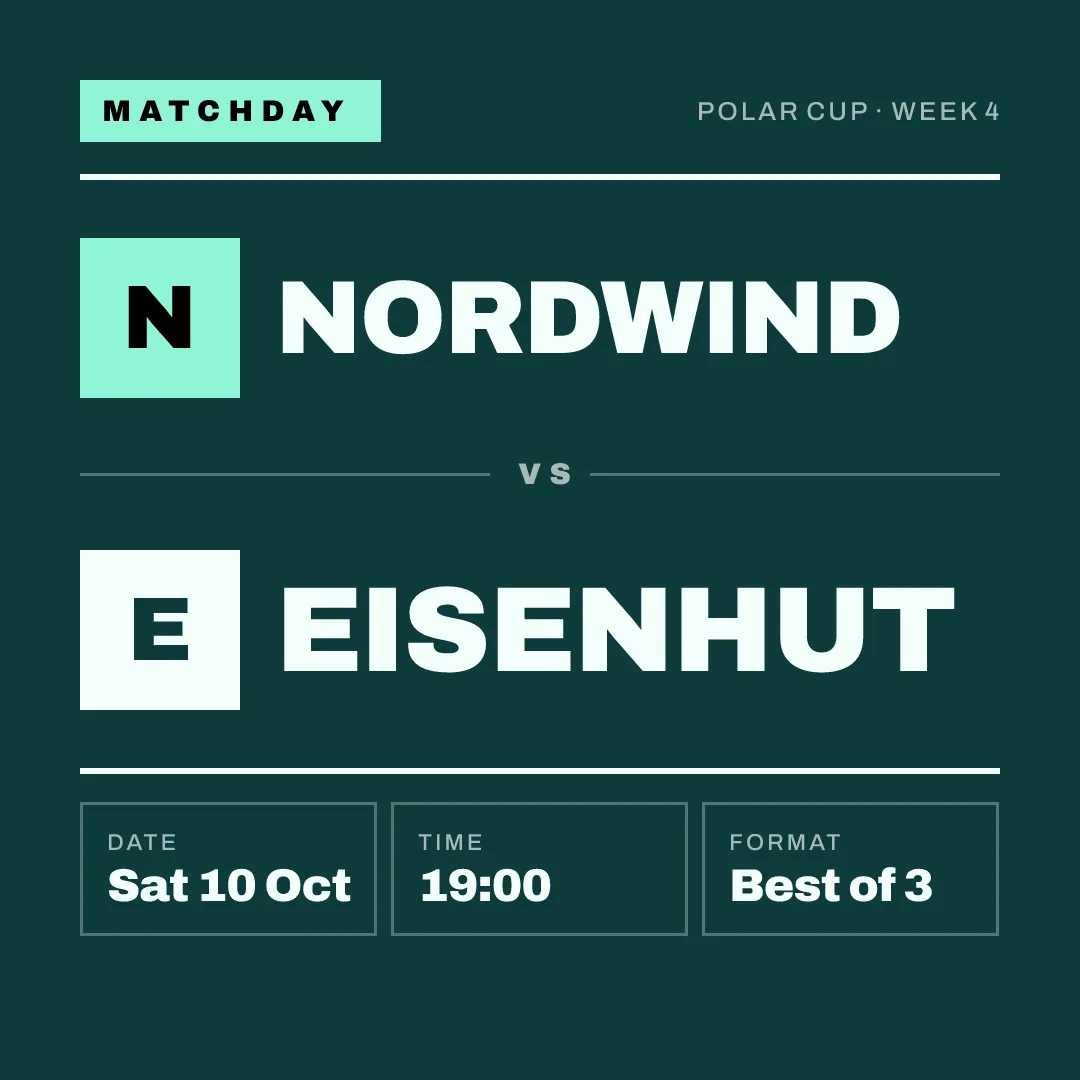
Every graphic has a post button for each size. Pick the channel if you have more than one, add a message if you want one, and post. The graphic appears in the channel as an image with your message above it, without a link or an embed.
Shortly before it starts: the roster graphic
gelvik picks your starting five from the players on your roster whose handles match their FACEIT nicknames. Check them, swap a player if someone else is starting, and post the roster graphic the same way.
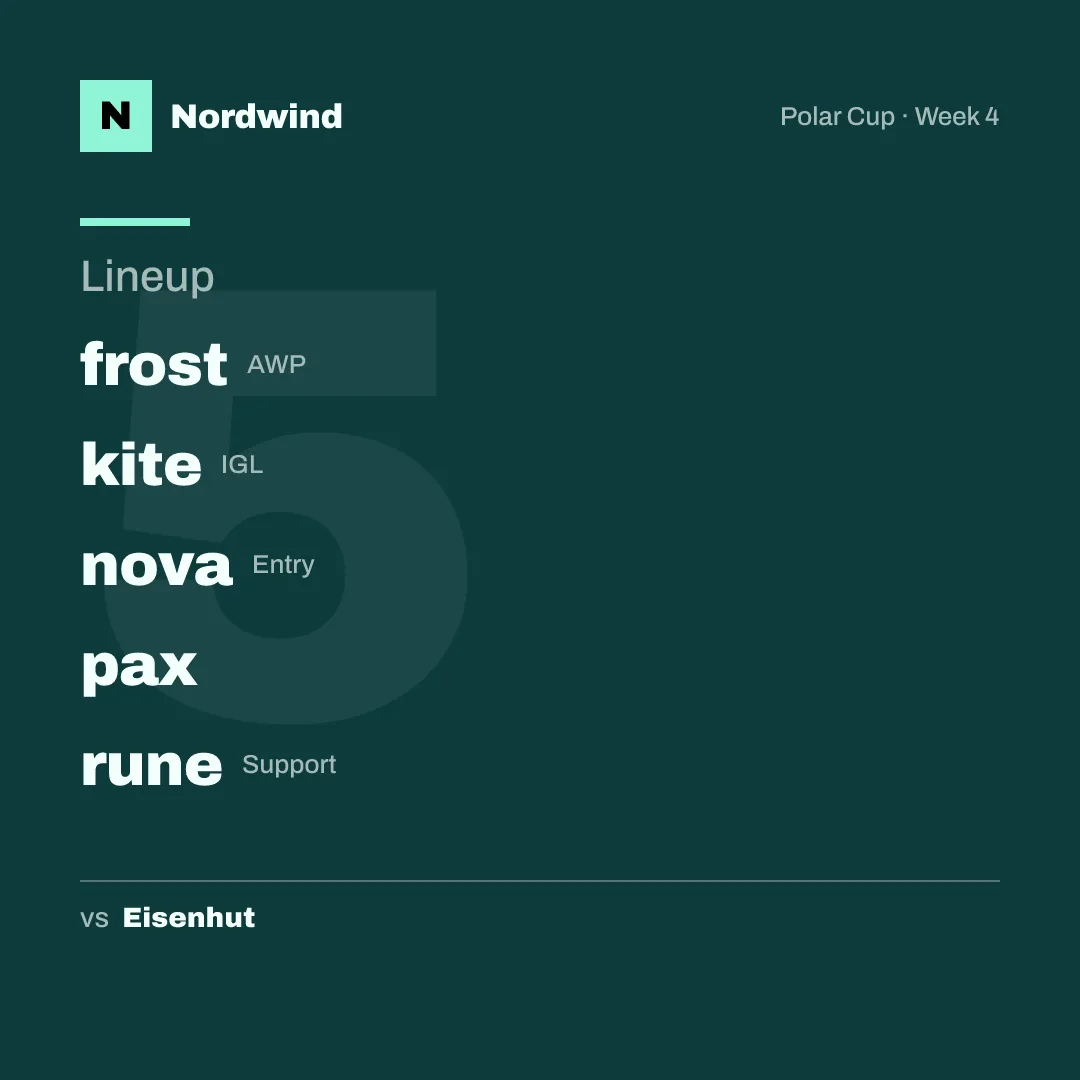
Players appear by handle only. For teams with players under 18, that is the safe default anyway.
After the match: update and post the result
Update from FACEIT
The score does not update by itself. When the match is over, open it in gelvik and press Update from FACEIT. gelvik fetches the status and every map with the rounds of both teams, your side first, and map names such as de_mirage show as Mirage. Your changes to the opponent, the competition and the starting five stay as they are.
If FACEIT has no final result yet, the update leaves the score as it is. Wait a moment and update again.
Importing the same link a second time does the same thing: it opens the match you already have instead of making a new one.
Post the result
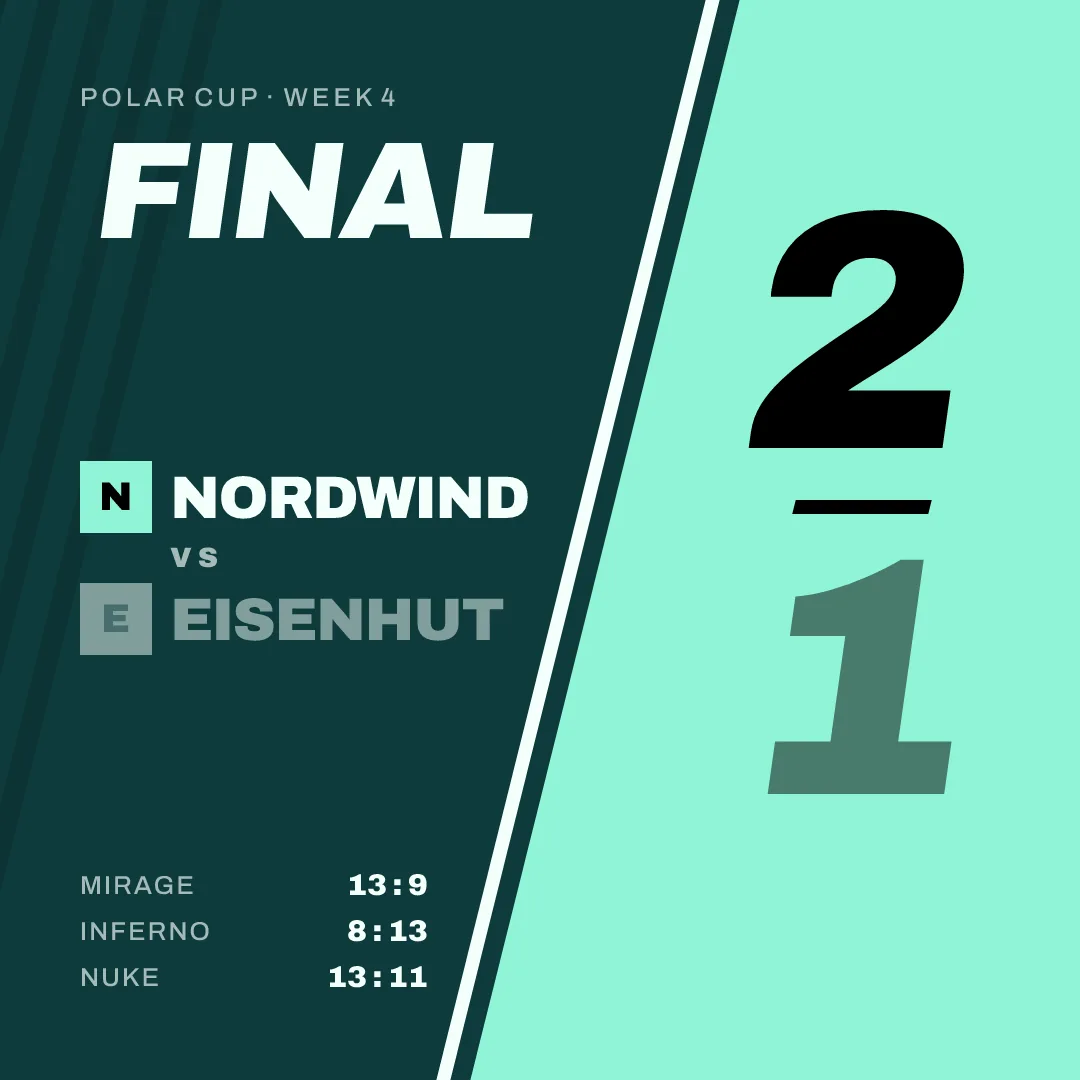
Same as before: post button, channel, message, done. Square is the usual size for a Discord channel: it reads well on a phone and on a desktop, and a channel full of square results looks tidy.
The same result exists in all four sizes, so the version for other platforms is already there. Portrait is the one for the Instagram feed:
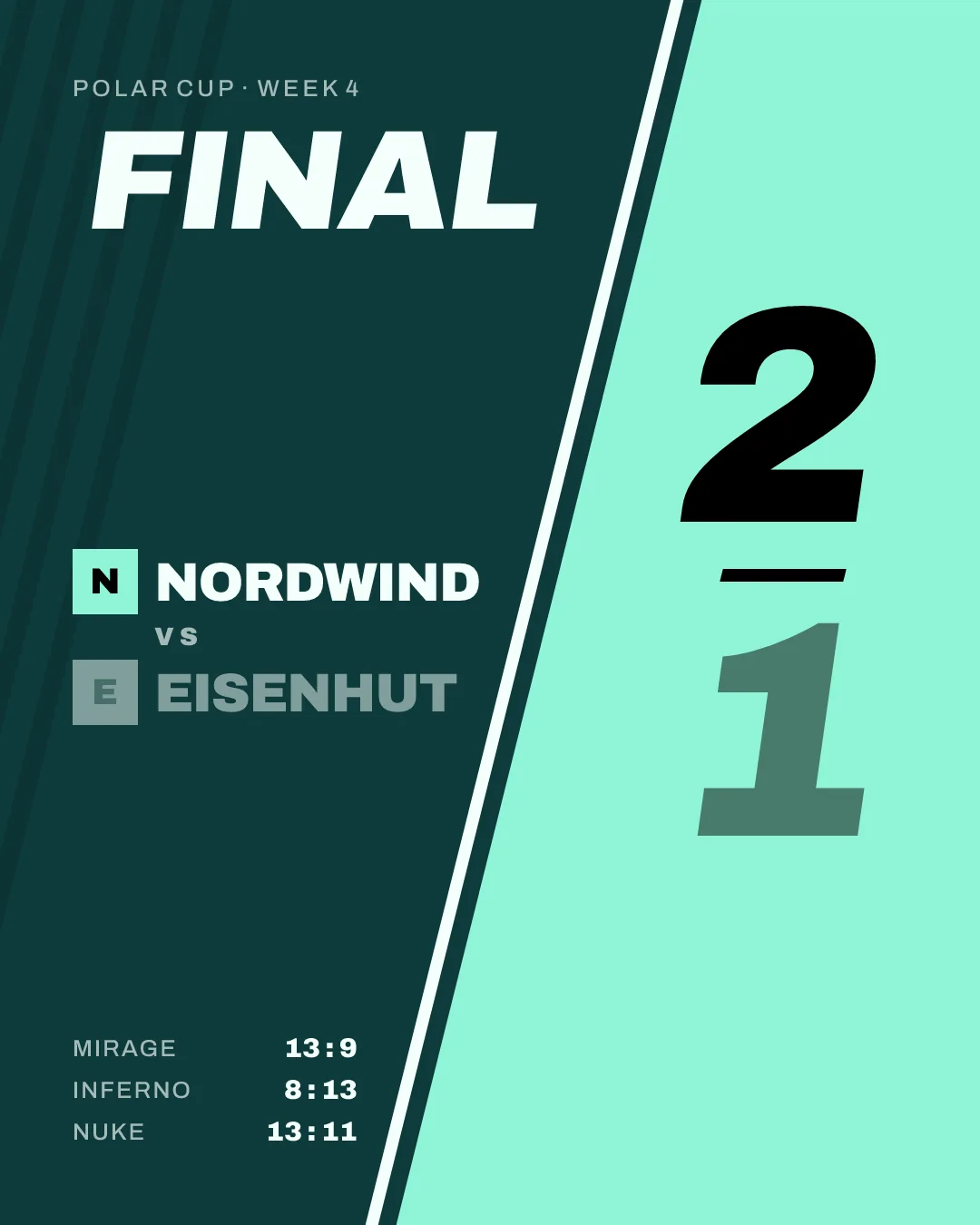
The image sizes guide explains which size goes where.
What to write with it
The graphic carries the score, so the message does not have to. A short line that sounds like your team does more than a copy of the numbers. Some examples to adapt:
- Announcement: "Polar Cup week 4. Nordwind vs Eisenhut, tonight. Come watch."
- Roster: "Tonight's five."
- Win: "2-1 after three maps. GG Eisenhut."
- Loss: "Not our night. 1-2 against a strong Eisenhut, back next week."
Posts from gelvik do not ping anyone. If you want to notify the whole server about a big result, write that ping yourself, as your own message.
Who sees what
Before the match, the announcement and the roster graphic tell your community when to tune in. After it, the result is the post people react to. The matchday guide has the full order of posts around a match, if you want to do more than these three.
Get started
The FACEIT import and posting to Discord both work by hand, on every plan, Free included: you decide when each graphic goes out. gelvik launches in early 2027; join the waitlist and we will let you know when your team can start.
FACEIT to Discord, match by match
Copy this list and keep it where whoever posts for your team can find it.
Once
- Webhook created in Discord for the results channel, URL copied
- Channel added in gelvik with a name the team recognises
- Second channel added, if announcements go elsewhere
- Players on the roster with the handles they use on FACEIT
Before the match
- Match link copied from the FACEIT match room
- Match imported in gelvik, your side confirmed
- Names checked: opponent and competition as your team writes them
- Matchday graphic posted
Shortly before it starts
- Starting five checked
- Roster graphic posted
After the match
- Update from FACEIT pressed
- Result graphic posted, with a line in your team's voice
- Other sizes downloaded for Instagram, X or TikTok, if you post there
Sources
- Discord Support, "Intro to Webhooks", read on 16 October 2026: https://support.discord.com/hc/en-us/articles/228383668-Intro-to-Webhooks